Sign in
n'clerk opens only to people who have been invited, by email address. To sign in:
- Go to nclerk.com and press "Sign in", then enter your email.
- A 6-digit code arrives by email. It works for 10 minutes and for 5 tries, and only in the browser where you asked for it.
- The first time, you create a passkey on your device. From then on, the passkey is asked for every time you sign in.
- You stay signed in for 12 hours.
The sign-in page answers the same way for every email, so it never shows who is invited. If no code arrives, you have no invite yet. Sign-in invites come from the people who set up your unit, not from a lead: ask a lead of your unit to pass the request on, or ask your CitiDev contact, the person at CitiDev who looks after your unit.
Open your workspace
After sign-in you land on nclerk.com/s. If one workspace is open to you, it opens at once. If several are, you pick one from Workspaces. If none is, the page says so.
Buttons and menus are in English. The steps and messages your workspace writes in a session are in Vietnamese.
Lead and team member
Inside a workspace you are a lead or a team member. The workspace decides which, from the unit's member list, every time you do something:
- A member marked as lead, or named as the unit approver or the technical approver, is a lead.
- Every other member is a team member.
- Someone who is not on the member list is a lead when they sign in through the unit's partner, and a team member when they sign in as one of the unit's own people. CitiDev staff on n'clerk's admin list are leads in every unit.
Leads approve work, apply settings changes, stop and resume work, and manage members, the AI key, the budget and the apps. Everyone can make requests, reply and post in the team channel. A team member decides an approval only when it names them. A member who has left the unit can still sign in, but the workspace is closed to them.
Lead and Team views
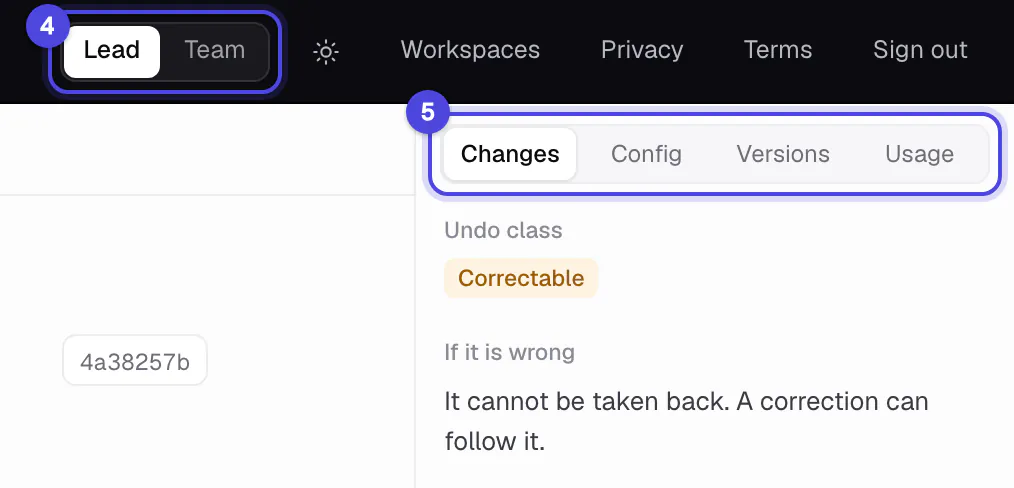
Leads see a Lead | Team switch in the bar. Team members see the Team view only.
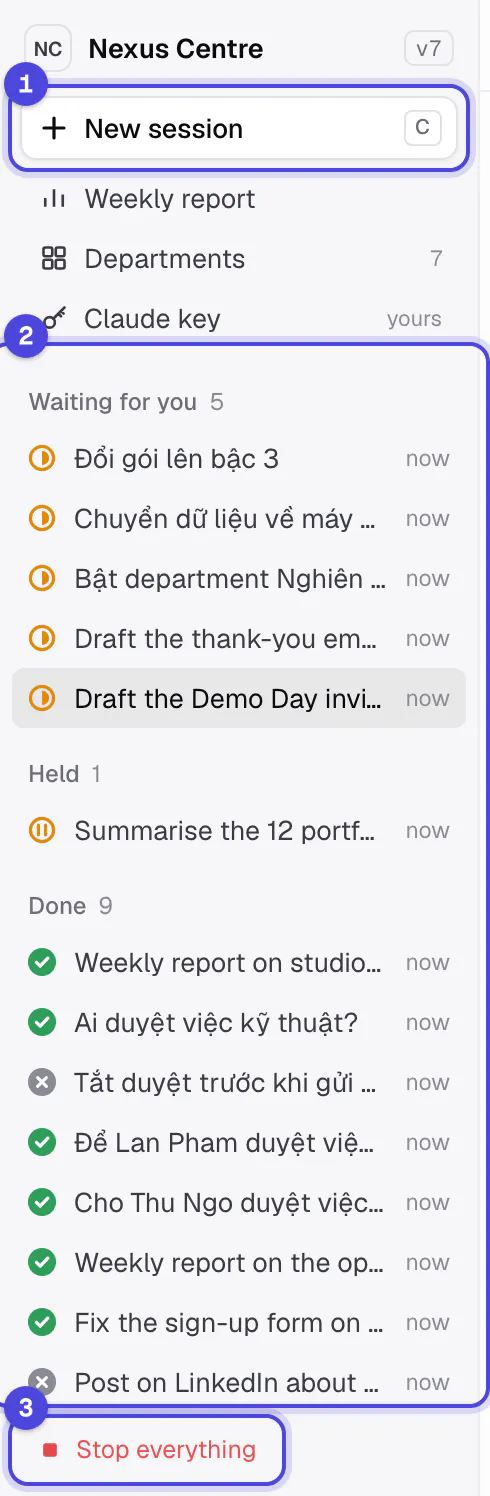
- Lead lists the sessions grouped as Waiting for you, Running, Held and Done, with "New session", "Weekly report", "Departments" and "Stop everything". The right pane has Changes, Config, Versions and Usage.
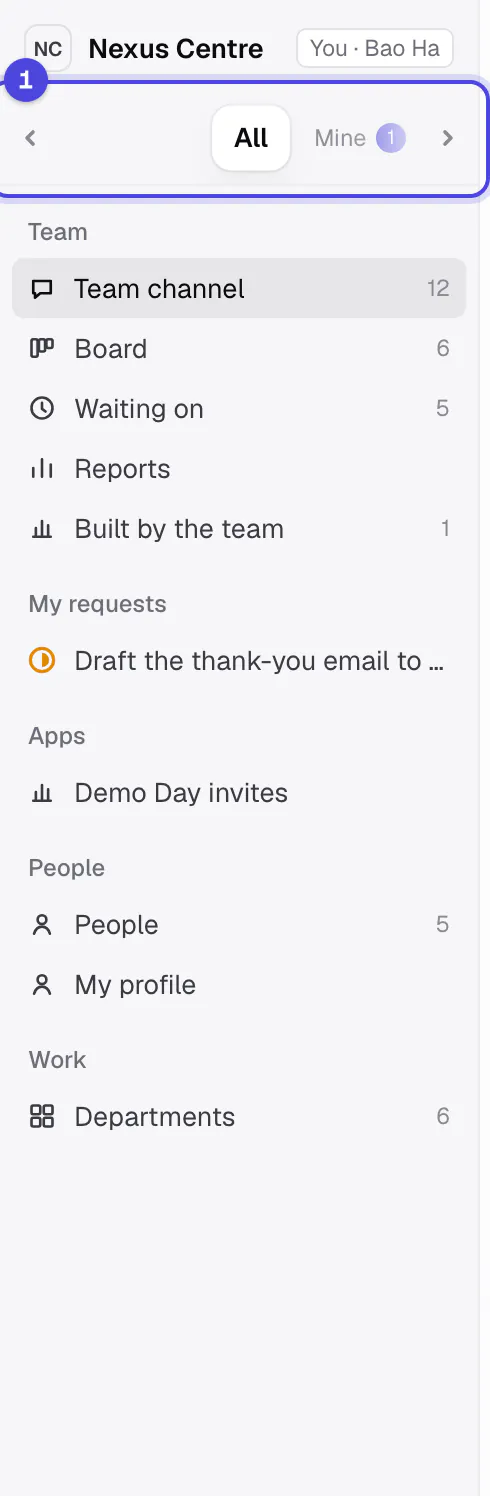
- Team shows the team channel, the board, Waiting on, Reports, the apps the team built, People and Departments. See The team view.
The view you chose is remembered for each workspace on this device.

Where to go next
- Make a request: ask for something in plain words.
- What happens to a request: the path from your words to a result.
- Approve and decline: nothing leaves the unit until a person says yes.
If you are a lead, start here too:
- Members and approvers: who is in the unit and who approves what.
- AI key and usage: the unit's own key, what it costs this month and the budget.
- Settings: how the unit's workspace is set up.
Something here does not match what you see? Tell your CitiDev contact.